
Overview
Your Bragghost hosting account comes with a primary FTP account that uses your cPanel username and password. However there are situations where you may need to create a separate FTP account — for example, to give a web developer access to your files without sharing your primary cPanel credentials.
This guide walks you through creating a separate FTP account in cPanel.
Step 1: Access FTP Accounts in cPanel
Log into your Bragghost Client Area and access cPanel from your hosting account. Once in cPanel, scroll down to the Files section and click FTP Accounts.

Step 2: Create the FTP Account
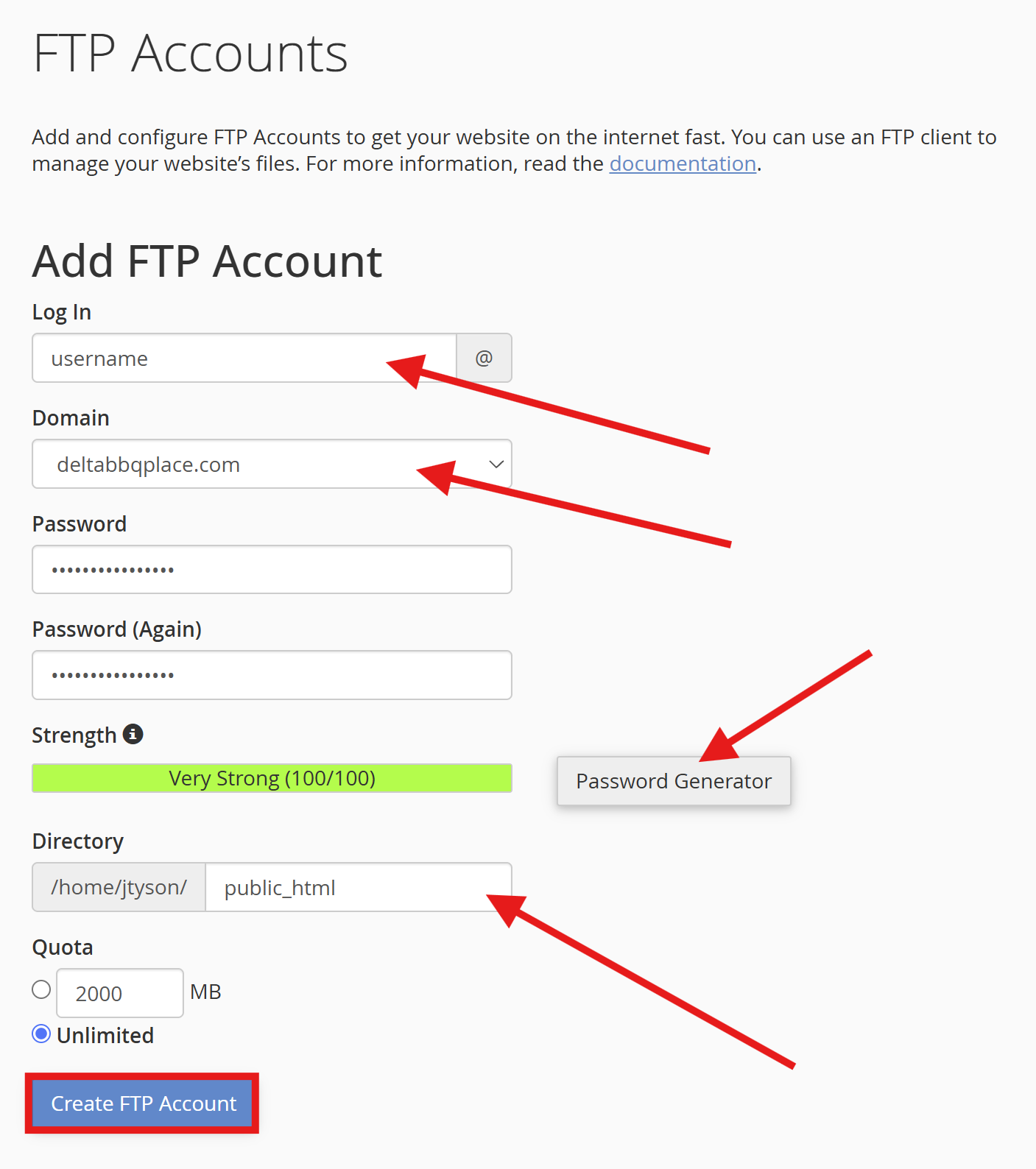
Fill in the following fields to create your new FTP account:
- Username — choose a username for the FTP account. This will become part of the full FTP login (e.g.
username@yourdomain.com) - Password — use the Password Generator to create a strong, secure password. Make note of it as you will need to share it with whoever is using the account
- Directory — this determines which folder the FTP account has access to. For full access to your website files, clear the default value and enter
public_html - Quota — set this to Unlimited
Once all fields are filled in, click Create FTP Account.
Important: Make sure to set the directory to public_html if you want the account to have access to your website files. If left as the default, cPanel will create a new empty directory named after the username with no website content in it.
Step 3: Account Created
Your new FTP account will now appear in the FTP Accounts list below the creation form. From here you can manage the account, change the password, or delete it at any time.

Step 4: Connecting With the New FTP Account
When connecting to your hosting account using this new FTP account, note the following:
- Username — the full FTP username will look like an email address:
username@yourdomain.com - Password — the password you created in Step 2
- Hostname —
ftp.yourdomain.comor your domain name - Port — 21 (FTPS Explicit)
Tip: If you need help setting up an FTP client to connect with these credentials, see our guide: How To Configure An FTP Client
Note: If
ftp.yourdomain.comdoes not work as the hostname, please contact our support team and we will provide the correct hostname for your account. When connecting with your FTP client, make sure to select FTP - File Transfer Protocol with Require explicit FTP over TLS (or the equivalent encryption option in your FTP client). This ensures your connection is encrypted and your credentials are protected.
Need More Help?
If you run into any issues our support team is available 24/7. Simply open a support ticket or use the live chat in your client area.
