
Overview
The cPanel File Manager gives you a powerful, browser-based way to manage your website files directly from your Bragghost account — no FTP client required. This guide walks you through the most commonly used features.
In this article:
- Create a Folder or File
- Delete a Folder or File
- Copy a Folder or File
- Move a Folder or File
- Upload Files
- Rename a Folder or File
- Compress a Folder or File
- Edit a File
Getting Started
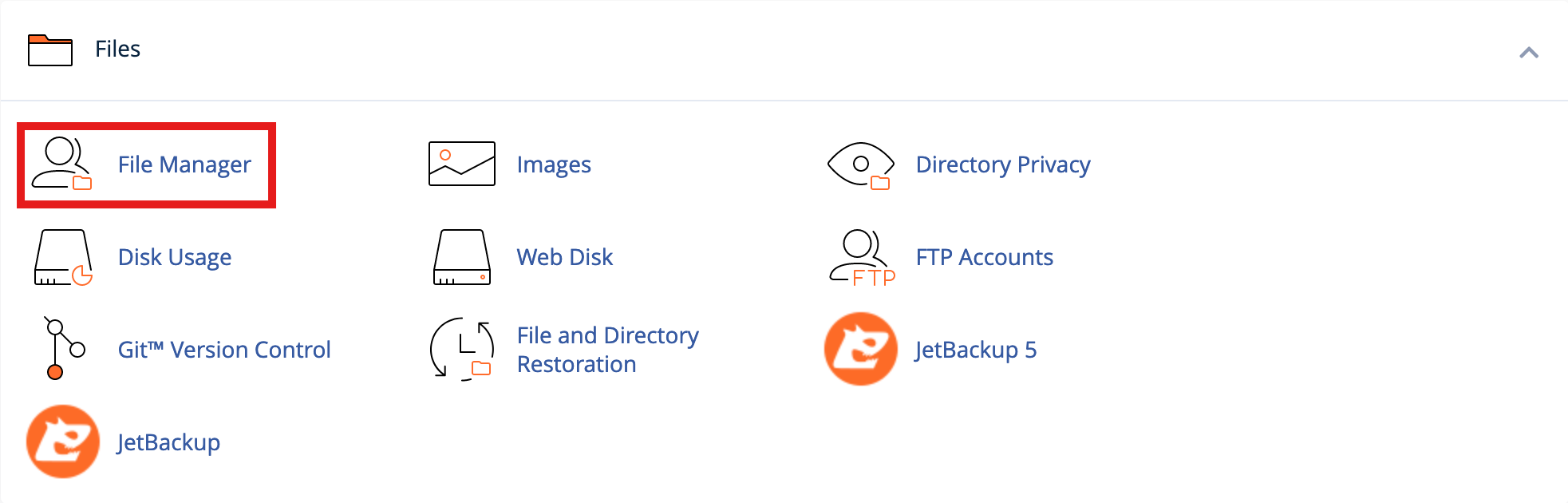
Log into your Bragghost Client Area and access cPanel from your hosting account from the "Your Products and Services" section. Click the File Manager icon under the Files section. You'll land in the root of your account — most of the time you'll want to navigate to the public_html folder, as this is where your primary website files live and what visitors see when they browse to your domain.
Create a Folder or File
Once inside public_html (or whichever directory you need), click +File or +Folder in the upper toolbar. Give it a name and click Create New File or Create New Folder. Your new item will appear in the directory immediately. Note that new files will be empty until you add content.


Delete a Folder or File
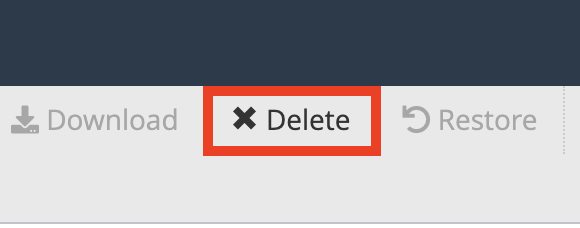
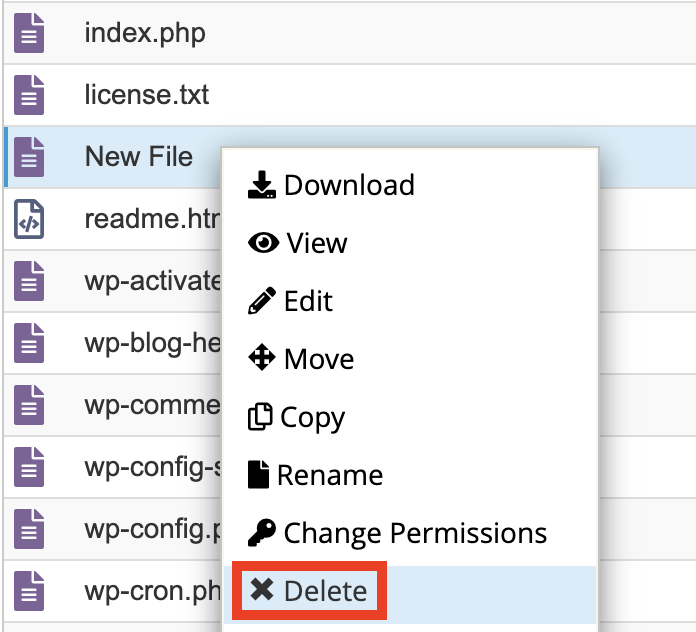
Select the file or folder by clicking on it — it will highlight in blue. Then click Delete in the top toolbar or right-click the item for a quick-access menu. When the confirmation dialog appears, check Skip the Trash if you want a permanent delete, then click Confirm.
⚠️ Note: Permanently deleted files cannot be recovered through File Manager. Make sure you have a backup before deleting anything important.
Copy a Folder or File
Click the file or folder you want to copy to select it, then choose Copy from either the top toolbar or the right-click menu. In the dialog that appears, give the copy a new name and click Copy Files. The copied item will appear in the same directory.


Move a Folder or File
The quickest way to move files is to click and drag them into another directory in the left-hand folder tree. Hold Ctrl (Windows) or Cmd (Mac) to select multiple files at once before dragging. Alternatively, right-click the file and choose Move, then type in the destination path and click Move Files.

Upload Files
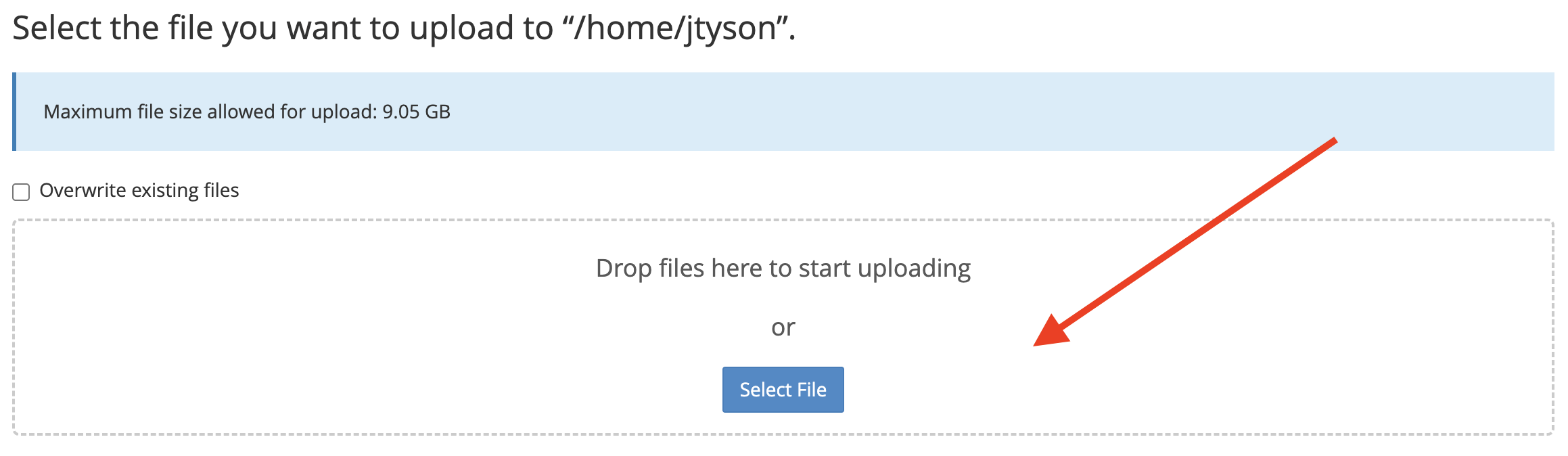
Navigate to the directory where you want to upload your files — in most cases this is public_html. Click the Upload button in the top toolbar. A new tab will open with an upload interface — browse to your files, select them, and they will begin uploading. Once complete the files will appear in the directory you were in when you clicked Upload.

Rename a Folder or File
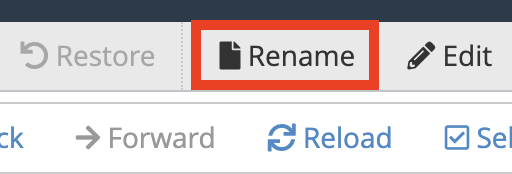
The easiest way is to click directly on the file or folder name — it will become editable. You can also right-click and choose Rename, or select the item and use the Rename option in the top toolbar.

Compress a Folder or File
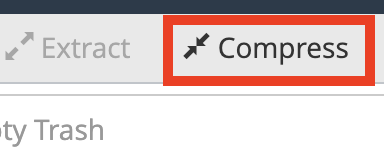
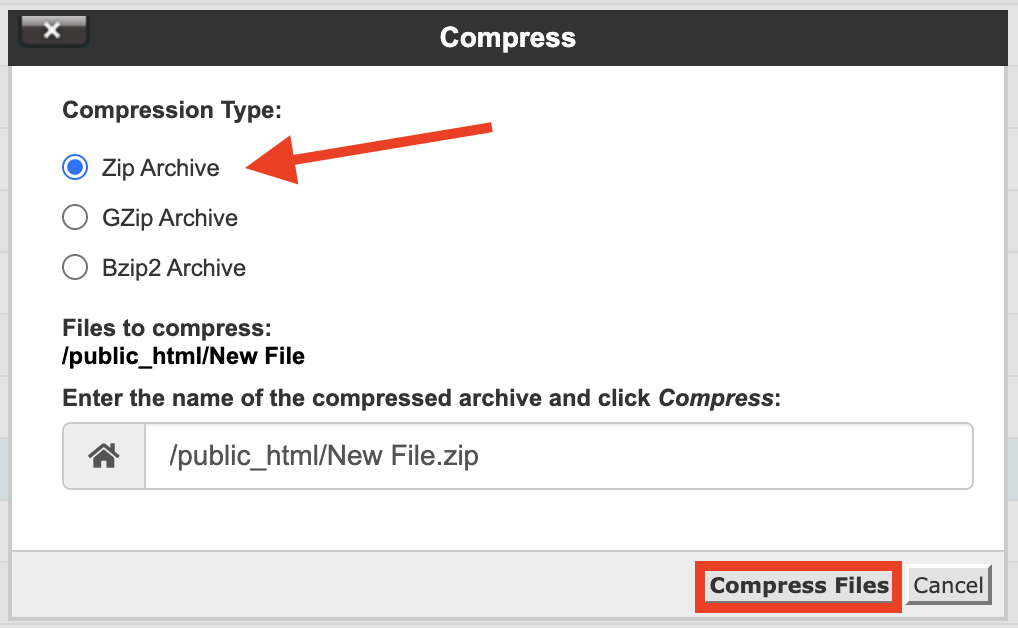
This is one of the things File Manager can do that a standard FTP client cannot! Select the file or folder you want to compress, then click Compress in the top toolbar or right-click menu. Choose your preferred compression format — ZIP is recommended for most uses — and click Compress Files. The compressed file will appear in the same directory. To extract it later, simply select it and choose Extract.
Edit a File
Select the file you want to edit and click Edit in the top toolbar. Keep in mind that the built-in editor is best suited for minor changes. For larger edits we recommend using a dedicated code editor on your desktop and uploading the updated file.
Tip: Before editing any file, use the Copy feature to make a backup first — just in case!

Need More Help?
If you run into any issues or need a hand, our support team is available 24/7. Simply open a support ticket or use the live chat in your client area.
